Filmora Lite: AI Video Creator
Wondershare FilmoraVideo Players & Editors
3.973.00 Reviews
- Version
- 15.6.90
- Installs
- 1.00M
- Age Rating
- Teen
Screenshots
Our Review of Filmora Lite: AI Video Creator
 Analysis by Appyee
I came to Filmora AI: AI Video Generator looking for a quicker way to turn phone clips into something shareable, without having to learn a full desktop editing workflow. It is a video-editing app from Wondershare Filmora, and its appeal is clear: get from raw footage to a finished short video with less manual arranging. I would treat it as a convenient creative tool, not a substitute for careful editing when timing, sound, or fine visual control really matters.
Getting Started: A User-Friendly Experience
First off, downloading and installing the app was a breeze. Just a quick visit to the App Store or Google Play, and I was good to go. Once I opened Filmora AI, I was greeted with a clean and intuitive interface. No overwhelming menus or confusing options here – just a simple layout that guides you smoothly through the video creation process.
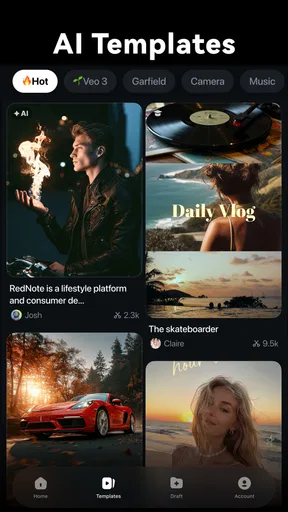
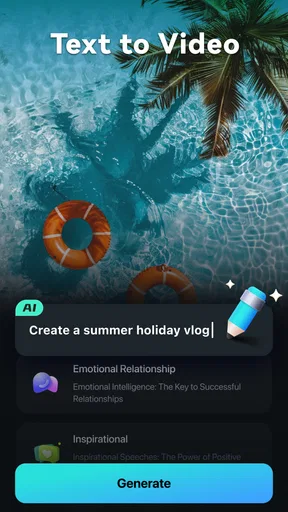
One thing that stood out to me right away was how the app caters to both newbies and seasoned editors. It offers easy-to-use templates and an AI assistant that helps you whip up professional-looking videos in minutes. Seriously, I felt like a pro even on my first try!
That first impression works best if you already have a rough idea of what you want to make. A template can help establish a visual direction, but it cannot decide which moments matter to you. I get a better result when I pick a small group of clips with a clear purpose before opening the editor, rather than expecting an automated workflow to turn a large, mixed camera roll into a coherent story.
Features That Make It Shine
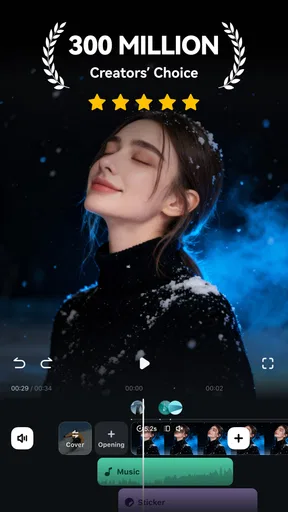
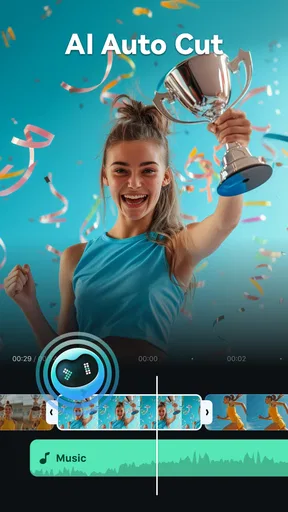
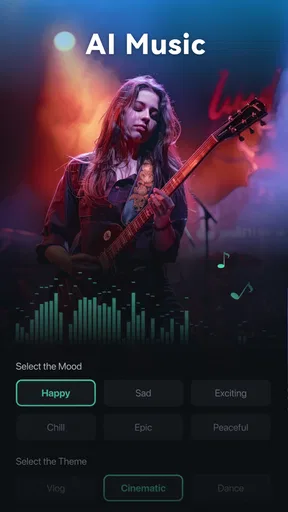
Now, let's talk features. Filmora AI is packed with some pretty nifty tools that make video editing a breeze. The AI-driven features are particularly impressive. You can simply upload your clips, and the app's smart technology does its magic – trimming, arranging, and even suggesting music tracks that fit the mood of your video. It's like having a personal editor in your pocket.
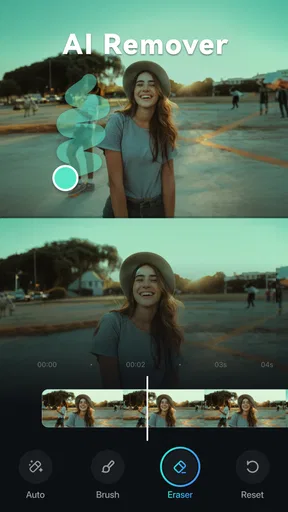
Another cool feature is the vast library of effects and transitions. Whether you're going for a cinematic look or just a fun montage for social media, there's something for everyone. I especially loved the AI-powered effects that automatically enhance your clips, making them look polished and professional with minimal effort.
The useful trade-off is speed versus authorship. Automatic choices can give a casual montage momentum, but they may emphasize a visually striking moment over the detail you actually want viewers to notice. I recommend watching the whole draft once with the sound on and once muted: the first pass reveals whether the music and cuts feel right, while the second makes it easier to catch a confusing sequence or a shot that lingers too long.
Music deserves a little care of its own. A suggested track can make a sequence feel finished, yet it can also overpower spoken audio or change the mood of a clip. If someone is talking in the footage, I would check the mix before exporting and keep the music from competing with the voice. For a video meant to preserve the atmosphere of a place, natural sound may be more useful than a dramatic soundtrack.
Performance and Creativity Unleashed
Performance-wise, the app runs smoothly on both Android and iOS, which is always a plus. I didn’t encounter any lags, even when working with high-resolution videos. The rendering process is quick, allowing you to preview your work without any annoying wait times.
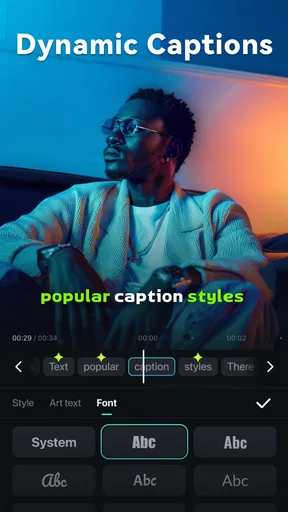
For those who love to add a personal touch, the app offers manual editing options too. You can tweak colors, adjust lighting, and add text overlays to give your videos that extra flair. Plus, the AI assistant is always there to lend a helping hand if you need it.
For an everyday example, imagine filming a weekend walk: a few wide views, a close-up of a café table, and a short clip of a friend waving to the camera. I would select the moments that give the sequence a beginning and an ending, then use a template to establish the pace before checking the cuts manually. A brief title can orient someone who was not there, but too much text can cover the scenery. This kind of small, personal recap is where quick assembly is more valuable than elaborate controls.
There is also a practical reason to keep projects modest on a phone. High-resolution footage and several layers of edits can make review and revision less comfortable on a small screen, even if the app handles a straightforward export well. I would make a clean first cut, save a version before experimenting with more effects, and avoid piling on decorative transitions just because they are available. That keeps it easier to spot whether each change actually improves the story.
Sharing and Connectivity
Once your masterpiece is ready, sharing it is a piece of cake. The app offers direct sharing options to popular social media platforms like Instagram, TikTok, and YouTube. No need to export and upload separately – just a few taps, and your video is out there for the world to see.
And if you're someone who collaborates with others, you’ll love the app’s ability to import and export projects seamlessly. It’s perfect for team projects or just sharing your edits with friends for feedback.
Before sharing, I would watch the exported result rather than relying only on the editor preview. Check that titles remain readable on a phone, the opening gets to the point, and the ending does not cut off abruptly. This final pass is especially useful for vertical social clips, where a subject near the edge of the frame may feel cramped after the edit is viewed in a feed.
For feedback, it helps to send a project or draft with one specific question—whether the sequence makes sense, for example—instead of asking someone to judge everything at once. That keeps revisions focused. If you are creating something for a group, settle on the preferred version before adding final polish; otherwise, small differences in taste can lead to repeated edits without making the video clearer.
Where It Fits—and Where It Doesn’t
In the wider video editor category, this app sits closer to a template-led mobile editor than to a detailed desktop timeline. Compared with a basic gallery editor, it gives you more room to shape the rhythm and look of a short piece. Compared with a traditional editor built around precise track-by-track control, its faster, guided approach is more approachable but less suited to intricate sound mixing, exact frame timing, or a long project with many revisions.
I would choose it for a quick birthday montage, a short travel recap, or a simple social post assembled from clips already on my phone. I would skip it if my main goal were a carefully synchronized music video, a complex multi-scene production, or a project that needs dependable fine-grained control at every edit. In those cases, a more timeline-focused editor—or a desktop tool—makes more sense, even if it takes longer to learn.
It is also worth separating an easy first draft from a finished piece. The app can reduce the effort of getting clips into a sequence, but it cannot know which family moment should stay in, whether a joke needs a beat of silence, or whether a particular shot is meaningful to the people watching. I see the strongest results when I use automation to get started and then make a few deliberate choices myself.
Price, Version, and What to Expect
The app is free to install, with in-app purchases ranging from $4.99 to $119.99 per item. That range makes it sensible to try the basic workflow before paying for anything: first check whether the editing style suits you, then see which tools or content you actually want. I would not assume that every template, effect, or export option is included at no cost; review the purchase details shown in the app before committing, especially if you only need to make an occasional video.
Filmora AI is rated for Everyone, has an average rating of 3.7 from around two thousand ratings, and has been installed over a million times. It was released on December 1, 2025, and version 15.1.97 is the current version. Those details place it as a relatively recent mobile offering with an established audience, but they do not tell me whether a particular workflow will suit an individual creator. I would judge it by trying a small project on the device I plan to use.
For Android users, the listed minimum operating-system requirement is version 7.0. If you are choosing between devices or helping someone install it, checking that requirement first can save time. iPhone and iPad users should look at the compatibility information shown in their store before downloading, since the Android requirement does not describe Apple devices.
The version and release details are useful context, not a promise about what will change next. For someone already using Filmora’s tools, the practical question is whether this mobile workflow complements the way they edit elsewhere; for a newcomer, it is whether the guided approach feels easier than arranging every cut by hand. I would keep an eye on how future versions handle the balance between automated suggestions and direct control, because that is what will determine whether the app stays useful after the novelty of a quick first draft wears off.
Final Thoughts: Is It Worth It?
So, after spending some quality time with Filmora AI: AI Video Generator, I have to say, I'm pretty impressed. It's a powerful tool that combines ease of use with advanced features, making it suitable for both casual users and those looking to create more polished content.
Whether you're making videos for fun, social media, or even professional projects, this app has got you covered. Its AI features take a lot of the hard work out of editing, while still giving you the flexibility to add your personal touch. If you're on the fence about trying it out, I'd say give it a shot. It might just become your go-to video editor!
My recommendation is strongest for people who want a low-friction way to turn a handful of phone clips into a presentable short video, and who are happy to review the automatic choices rather than accept them blindly. If you need exact editorial control or plan to build a more demanding production, I would choose a different kind of editor. For everyone in between, starting with one small project is the fairest test: it shows whether Filmora’s guided style saves you time without taking away the decisions that make the video yours.
Verdict
Strengths of Filmora Lite: AI Video Creator
- Easy-to-use interface for beginners.
- Wide range of AI-powered editing tools.
- Supports high-resolution video exports.
- Regular updates with new features.
- Cross-platform compatibility.
Limitations of Filmora Lite: AI Video Creator
- Limited free version features.
- Occasional performance lags on older devices.
- Requires internet for some AI tools.
- Subscription can be costly for casual users.
- Learning curve for advanced features.
Other Releases by Wondershare Filmora
View All
Filmora: AI Video Editor&Maker
Video Players & Editors4.0
Similar Picks in This Category
View All
Google TV
Google LLC3.9

iTunes
Apple4.7

YouTube
Google LLC3.8

MX Player
Amazon Mobile LLC4.2

CapCut - Video Editor
Bytedance Pte. Ltd.3.5

PLAYit-All in One Video Player
PLAYIT TECHNOLOGY PTE. LTD.4.5
Frequently Asked Questions
What is Filmora AI: AI Video Generator?
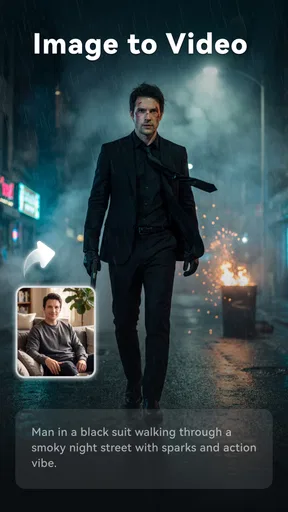
Filmora AI: AI Video Generator is an innovative app designed to simplify video creation by using artificial intelligence. It offers a range of AI-powered tools that help users generate professional-quality videos with ease. Whether you're a beginner or a seasoned editor, this app provides features like automated video editing, music synchronization, and intelligent scene detection.
How user-friendly is Filmora AI for beginners?
Filmora AI is highly user-friendly, especially for beginners. The app's intuitive interface and step-by-step guides make it easy for anyone to create stunning videos without any prior editing experience. The AI tools handle complex tasks, allowing users to focus on creativity instead of technical details.
What platforms is Filmora AI available on?
Filmora AI is available for both Android and iOS devices, ensuring a wide range of compatibility. Users can download the app from the Google Play Store or the Apple App Store, making it accessible to a broad audience. Regular updates ensure that the app remains optimized for all supported devices.
Does Filmora AI support multiple video formats?
Yes, Filmora AI supports a variety of video formats, making it versatile for different editing needs. Users can import and export videos in formats such as MP4, AVI, MOV, and more. This flexibility ensures that users can work with their preferred file types and share their creations across multiple platforms.
Are there in-app purchases or subscription fees for Filmora AI?
Filmora AI offers a free version with basic features, but also includes in-app purchases and subscription options for advanced tools and effects. Users can choose to upgrade to a premium plan to unlock additional functionalities such as exclusive templates, effects, and cloud storage, enhancing their video editing experience.
